iDo
Manual
This is the manual for release 2.3. If you do not have this version, some changes can be found in this manual.
At start, iDo will display the Tasks List Window, that you can call the ToDo List :
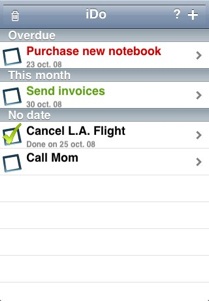
If you launch iDo for the first time, this list is empty.
Black items are items that do not have any due time. Items are green ifn their priority is low, orange if priority is medium and red if priority is high. Black tasks does not have any priority.
If a task has a due date and is late, a red clock will be displayed. If the task is on time, the clock will be green.
By default, task do not have any due date, priority or category.
To mark a task as done, just check it by clicking on the blue check box.
Add a new Task
To Add a new task, just click on the  icon. This will display a dialog box where you can enter the description of the task :
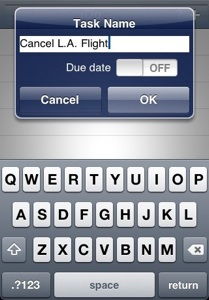
If you enable to “Due Date” switch, you will be able to enter a due date for the task.
Remove Tasks
To remove a task,just swipe your finger above the line you want to remove.
Modifying task properties
To modify a task, just click on the line of the task in the list. This will allow you to modify task properties :
-
•Description
-
•Comment
-
•Due date enabling
-
•Effective due Date
-
•Priority
-
•Category
These changes are performed through the screen below :
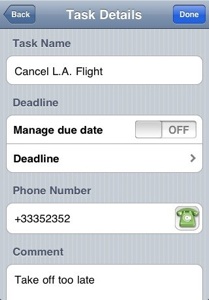
You can edit the Task description in the “Task Details” section. To enable due date, just enable the switch control.
If due date is enabled, you can modify it by clicking on the arrow in Due Date row.
Each task can also have a priority : none, low, medium or high. To change the priority, just click on the Priority line. The displayed task will then have a color according to this priority.
You can also add a category to the task. The category window works like the task window : you can add or modify category name.
Clicking on the green phone make a call to the displayed phone number. This option is only available on iPhone devices. You can get the phone number from address book by clicking on the arrow.
Then, validate your changes by clicking on “Done” button.
Settings Panel
In the settings of your iPhone, there is a preferences panel that can help you to customize iDo behavior :
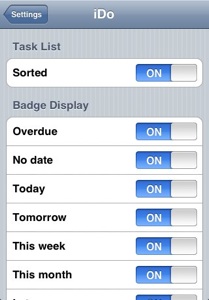
There are 2 sections in this screen :
-
๏Task List : This section allow to enable or disable automatic sorting of tasks. If enabled, tasks are automatically sorted by due date and name. If disabled, a new Edit button will appear in the tool bar of the main screen. This icons allow you to reorganize the task list and change the display order of tasks.
-
๏Badge Display : The Badge is the number that is display in a red circle on the application icon. By default, this number take all the unchecked tasks into account. This section allows you to selection which tasks are taken into account to compute this number.
That’s all. You are now fully operational with iDo !!
Copyright © 2008-2009 David Scrève
All Rights Reserved